How to access the cluster
To access cluster using Windows:
To access PARAM Rudra, there are few tools available, please see some below:
-
PuTTY is the most popular open source ssh client application for Windows. Following are the steps:
-
Download PuTTY from its official website.
- Install PuTTY on your computer.
- Launch Putty from your desktop or Start menu.
- In the dialog, locate the "Hostname or IP Address" input field.
- Enter the hostname of the cluster: paramrudra.iitb.ac.in
- For all users , use port 4422 as ssh port
- Select open, then enter your username
- Enter the captcha when prompted, then input your password.
-
Press Enter to proceed with the connection.
-
Another popular tool is MobaXterm, which is a third party freely available tool which can be used to access the HPC system and transfer files to the PARAM Rudra system through your local systems (laptop/desktop). Here are the steps:
-
Download MobaXterm from its official website.
- Install MobaXterm on your computer.
- Launch MobaXterm from your desktop or Start menu.
- Click on the "Session" button in MobaXterm.
- Enter the hostname, along with your username.
- For all users , use port 4422 as ssh port
- Enter the captcha when prompted, then input your password.
- Press Enter to proceed with the connection.
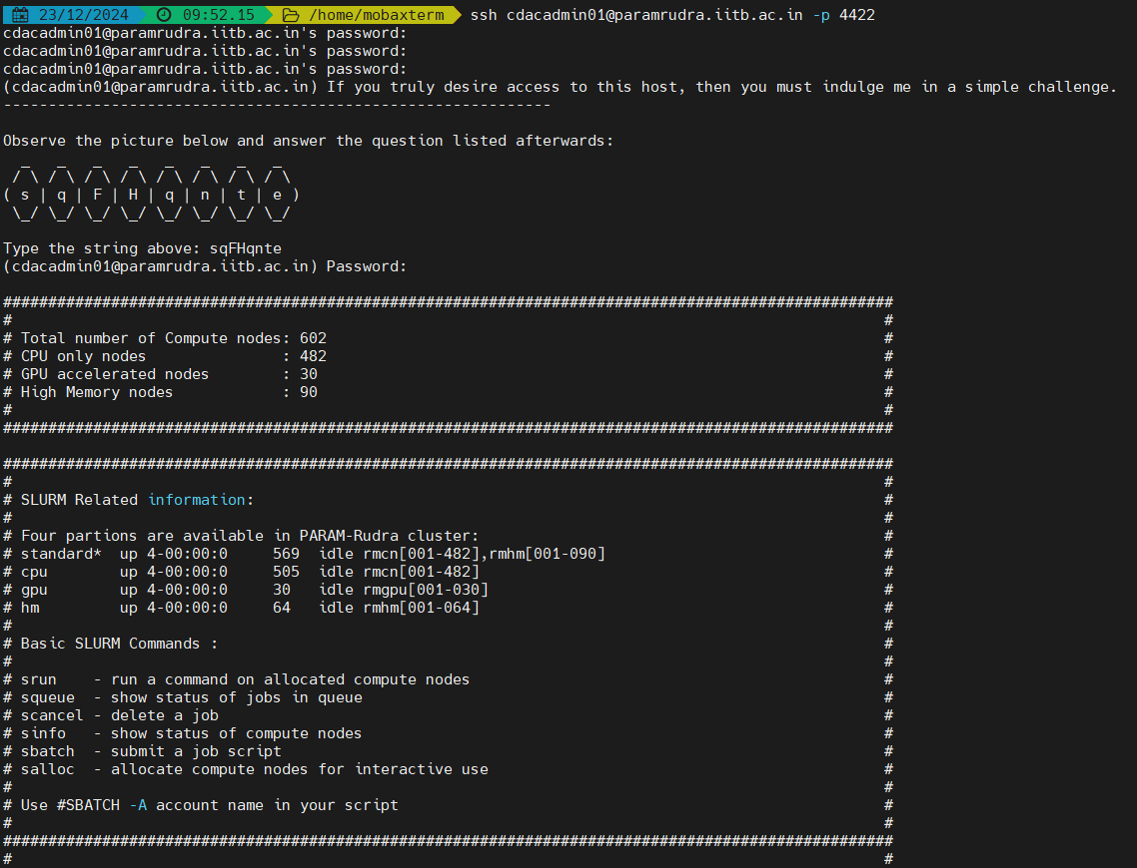
Figure 3 - A snapshot of command using MobaXterm
- Command Prompt (Windows native application)
This is a native tool for Windows machines which can be used to transfer data from the PARAM Rudra system through your local systems (laptop/desktop).
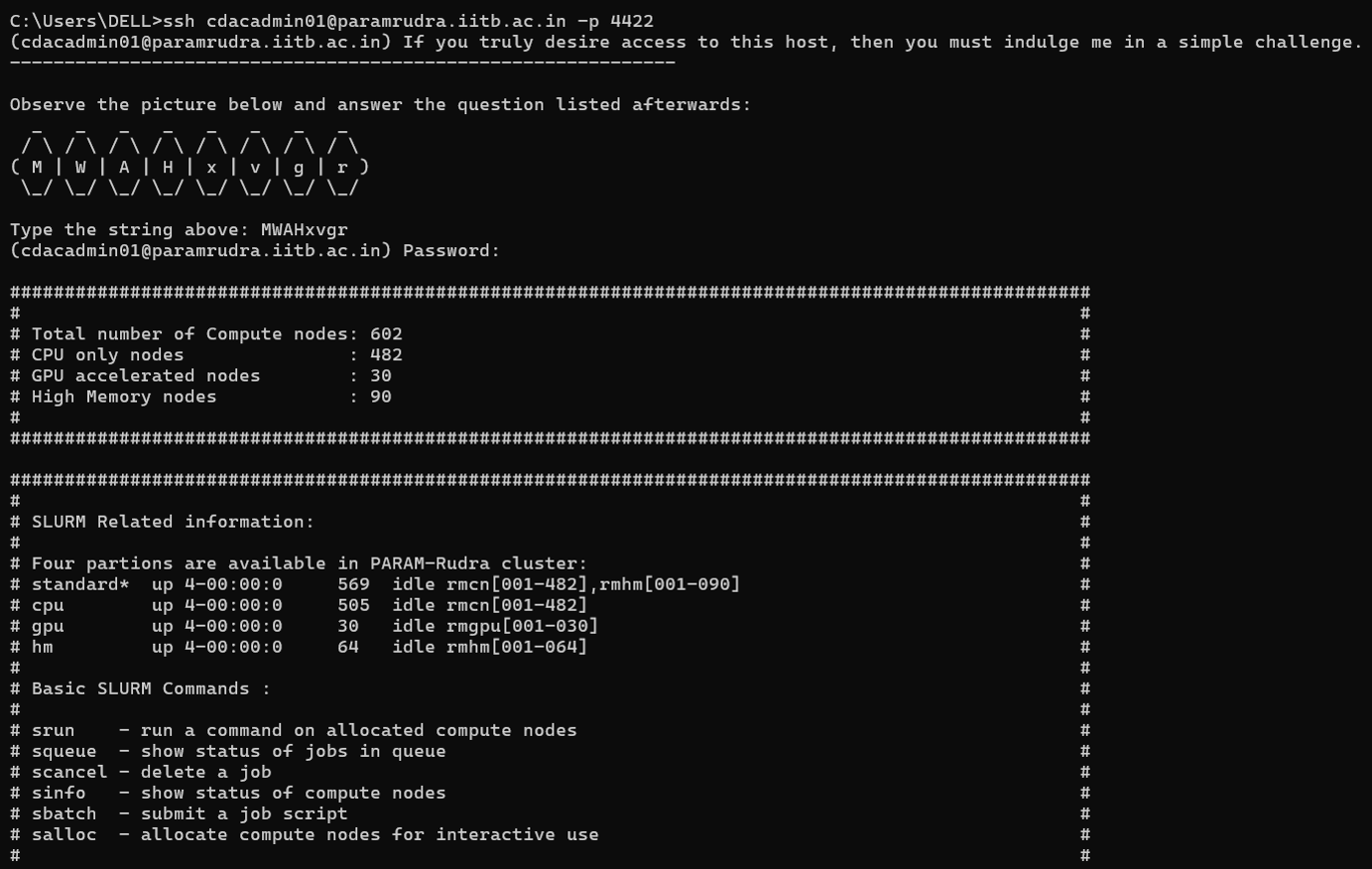
Figure 4 - A snapshot of the "scp" command using Windows command prompt.
- PowerShell (Windows native application)
This is a native tool for Windows machines which could be used to transfer data from the PARAM Rudra system through your local systems (laptop/desktop).
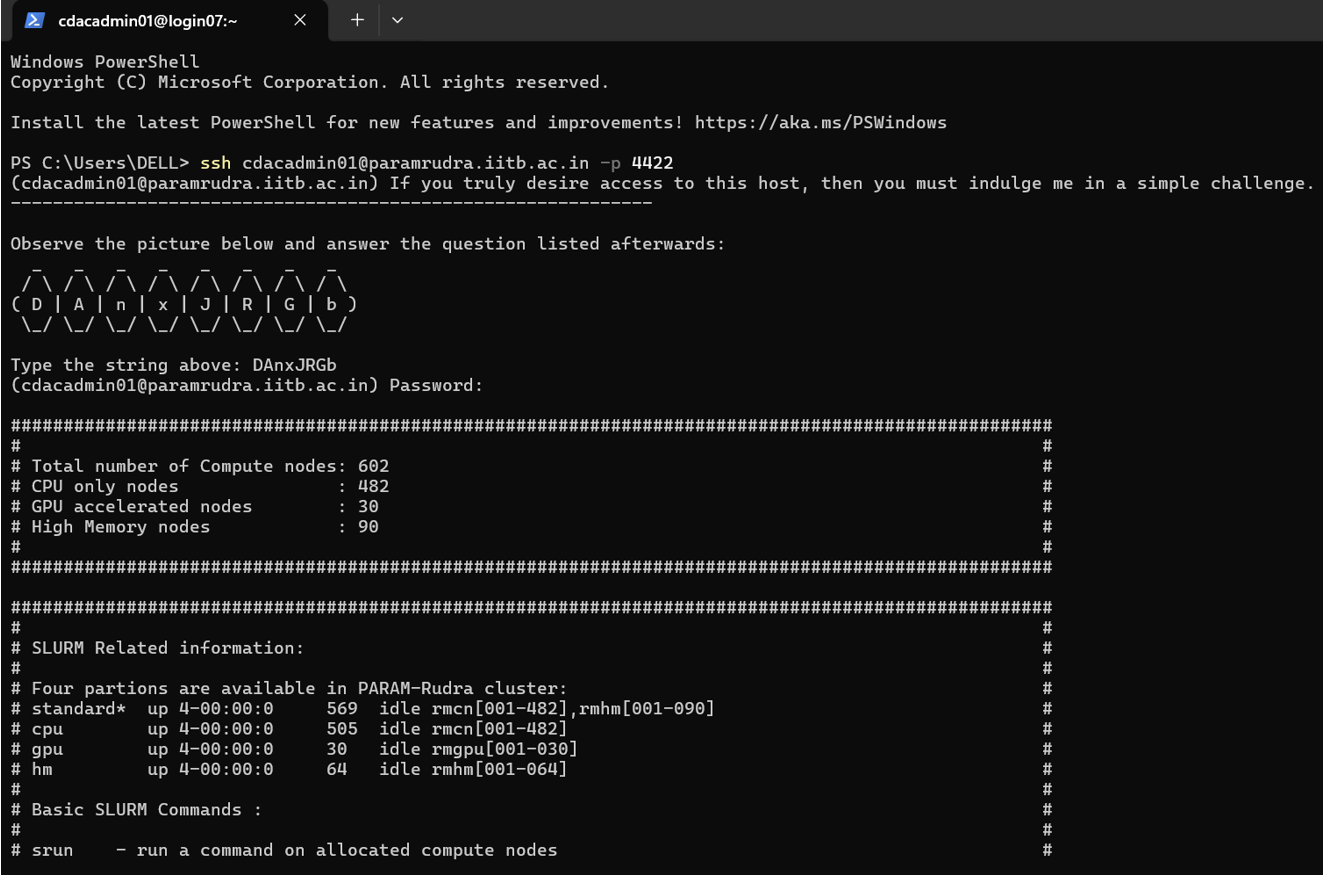
Figure 5 - A snapshot of the "scp” command using Windows PowerShell.
To access cluster using Mac or Linux
Both Mac and Linux systems provide a built-in SSH client, eliminating the need to install any additional package. To connect to a SSH server, open the terminal and type the following command:
ssh[username]@[hostname]
For example, to connect to PARAM Rudra cluster:
ssh user1@paramrudra.iitb.ac.in -p 4422
After entering captcha, you will be prompted for a password. Once entered, you will be connected to the server.
After getting credentials you may access the cluster, please remember the following points:
- When you log in to the cluster, you will land on the login nodes. The login node serves as the primary gateway to the rest of the cluster, housing a job scheduler (known called Slurm) and other applications for creating and submitting the job. You can submit jobs to the queue, and they will execute when the required resources become available.
- Please refrain from running jobs directly on the login node. Login nodes are intended for compiling codes, transferring data and submitting jobs. If you run your job directly on the login node, it will be terminated.
- By default, two directories are available (i.e. /home and /scratch). These directories are available on the login node as well as the other nodes on the cluster. /scratch is for temporary data storage, generally used to store data required for running jobs. Users are requested to regularly back up their own data in scratch directory. As per policy, any files not accessed in the last three months will be permanently deleted.
First login
Whenever a newly created user on PARAM Rudra attempts to log in with the user ID and temporary password provided via email by PARAM Rudra support, it is mandatory for the user to change the password to one of their choosing. This ensures the security of your account. It is recommended to use a strong password containing a combination of lowercase and uppercase letters, numbers, and a few special characters that are easy for you to remember.
Your password will be valid for 90 days. On expiry of 90 days period, you will be prompted to change your password, on attempting to log in. You are required to provide a new password.
Forgot Password?
- Please open a ticket regarding this issue, and the support team will assist you with your problem. Follow the steps below:
- Visit the PARAM Rudra support site, which is the ticketing tool, by clicking on the following link: https://paramrudra.iitb.ac.in/support
- Log in using your username or registered email ID.
- Raise a ticket to request a password reset.
- The support team will respond with an email for verification.
- Once you acknowledge the email, the password will be reset for you, and you will receive an email confirming the same.
- You can then log in using the temporary password provided and set a new password of your choice.
How to change the password:
Use the passwd command to change your user password. Enter your current password, followed by your new password, and then confirm the new password.