Transferring files between local machine and HPC cluster
Users need to have their data and applications related to their project or research work on PARAM Rudra. To store the data, special directories named “home” have been made available to the users. While these directories are common to all the users, each user will have their own directory with their username in the “/home” directory, where they can store their data.
/home/
A user using the ‘Windows’ operating system will have access to methods and tools native to Microsoft Windows, as well as tools that can be installed on their Windows machine. Linux operating system users, however, do not require any tool. They can simply use the “scp” command on their terminal. Here’s how:
scp -r -P 4422 <path to the local data directory>
<username>@paramrudra.iitb.ac.in:<path to directory on HPC where to save
the data>
Note
Note: use port 4422
Example:
Same Command could be used to transfer data from the HPC system to other HPC system, or your own system.
scp -r -P 4422 <file path> <username@<cluster IP/hostname>:/home/user/<path>
Note
Note: use port 4422 for your system
Note: The local system (laptop/desktop) must be connected to a network that allows access to the HPC system. Additionally, please ensure that the firewall settings on your laptop are configured to allow access from the HPC system.
Users are advised to keep a copy of their data once their project or research work is completed by transferring the data from PARAM Rudra to their local system (laptop/desktop). The command below can be used for file transfers in all the tools.
Tools
<b style="color:#259AA4">WinSCP (Windows installable application)</b>
This popular tool is freely available and is used very often to transfer data from Windows machine to Linux machine. This tool is GUI based which makes it very user-friendly.
Link for this tool is: https://winscp.net/eng/download.php
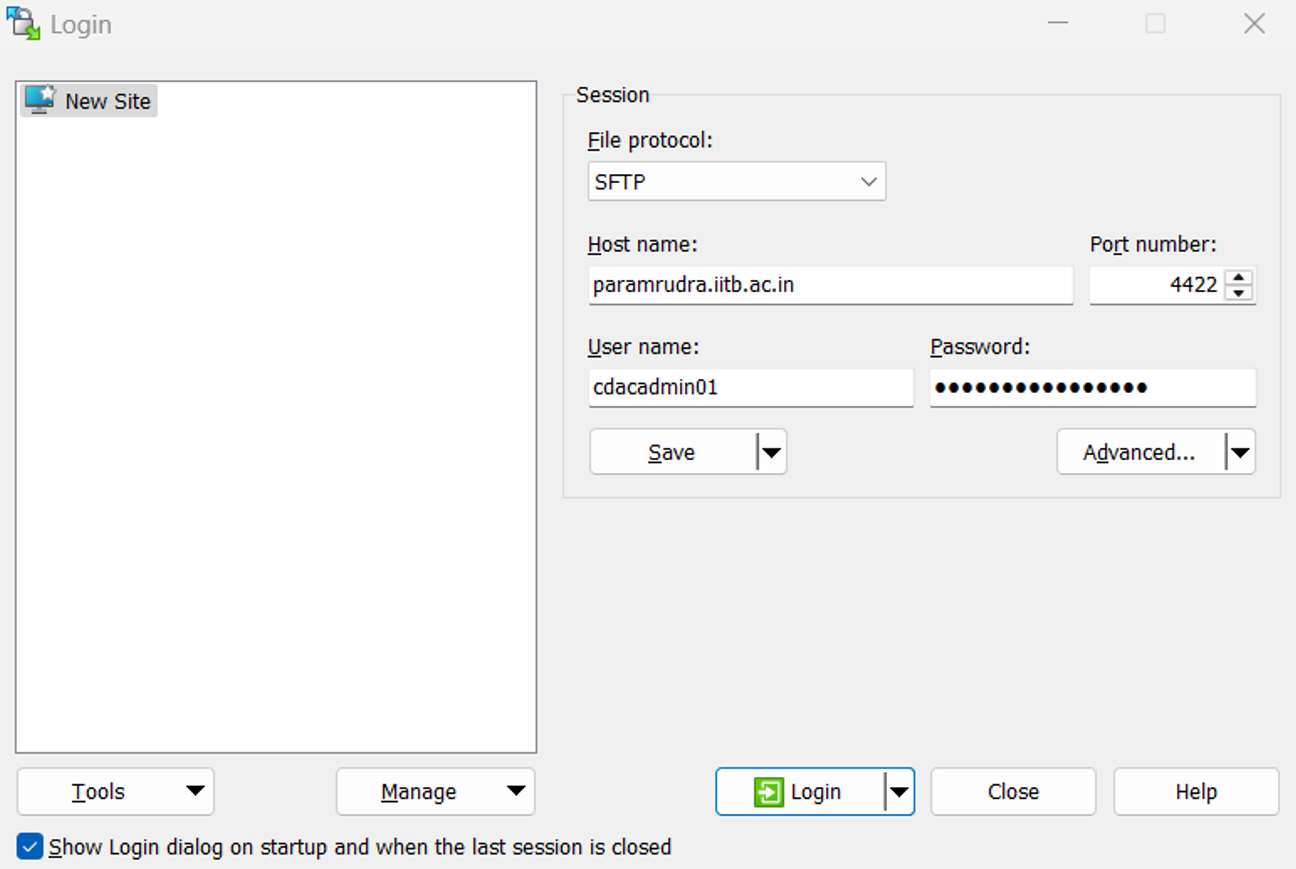
Figure 6 - A snapshot of the "WinSCP" tool to transfer file to and from remote computer.
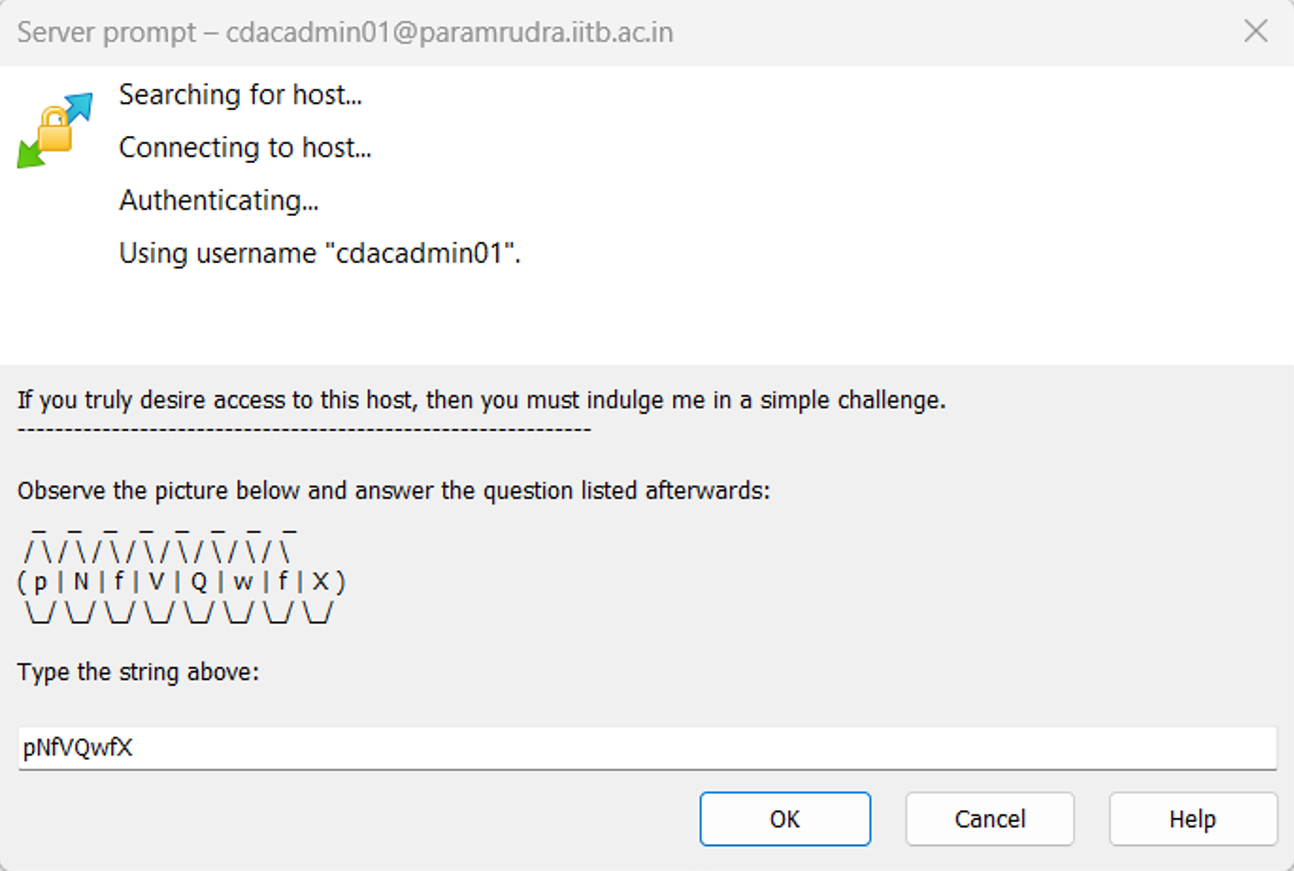
Figure 7–Enter Captcha/String
Note: Port Used for SFTP connection is 4422 and not 22. Please change it to 4422