Loading packages through SPACK
PARAM Rudra extensively uses spack. The purpose of spack is to provide freedom to users for loading required applications or packages of specific versions with all its dependencies in the user environment. Users can find the list of all installed packages with their specific versions and dependencies. This also specifies which version of the application is available for a given session. All applications and libraries are made available through spack. A User has to load the appropriate package from the available packages.
Introduction
Spack automates the download-build-install process for software - including dependencies - and provides convenient management of versions and build configurations. It is designed to support multiple versions and configurations of software on a wide variety of platforms and environments. It is designed for large supercomputing centers, where many users and application teams share common installations of software on clusters with exotic architectures, using libraries that do not have a standard ABI. Spack is non-destructive: installing a new version does not break existing installations, so many configurations can coexist on the same system.
On your login node command prompt execute below commands:
$ module load spack
It will load SPACK module and set up environment for SPACK.
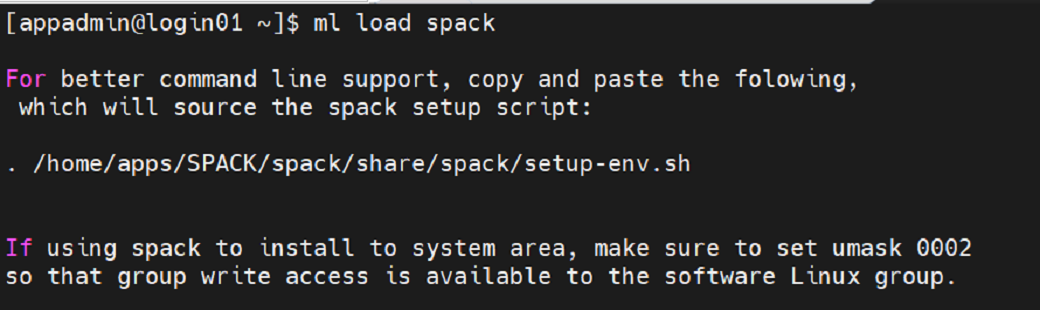
Kindly see the above screenshot and source below line including initial dot.
$ . /home/apps/spack/share/spack/setup-env.sh
To Use Pre-Installed Applications from Spack
spack find
The spack find command is used to query installed packages on PARAM Kamrupa. Note that some packages appear identical with the default output. The -l flag shows the hash of each package, and the -f flag shows any non-empty compiler flags of those packages.
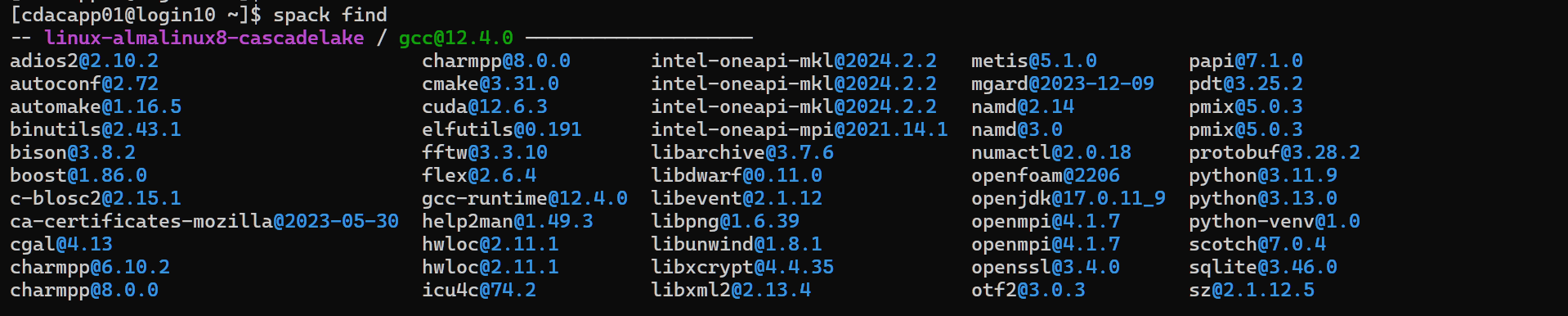
spack load application name
The easiest way is to use spack load

To know the Pre-Loaded Application/Compliers
spack find --loaded
To install new application
First check the available compilers in Spack with below command:
spack compilers
Spack manages a list of available compilers on the system, detected automatically from the user’s PATH variable. The spack compilers command is an alias for the command spack compiler list.
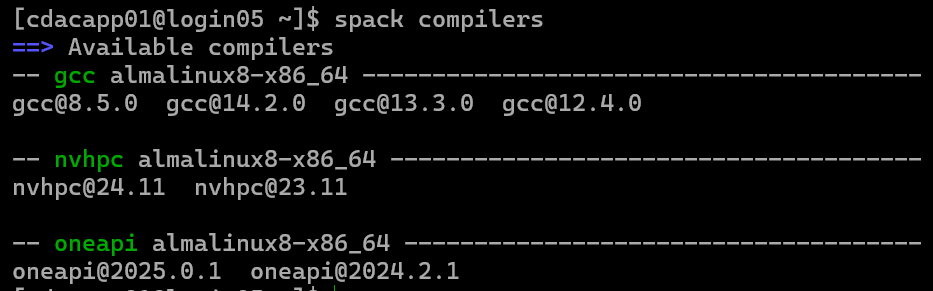
To check the compliers available in the system
Check if application is available in Spack repo with command-
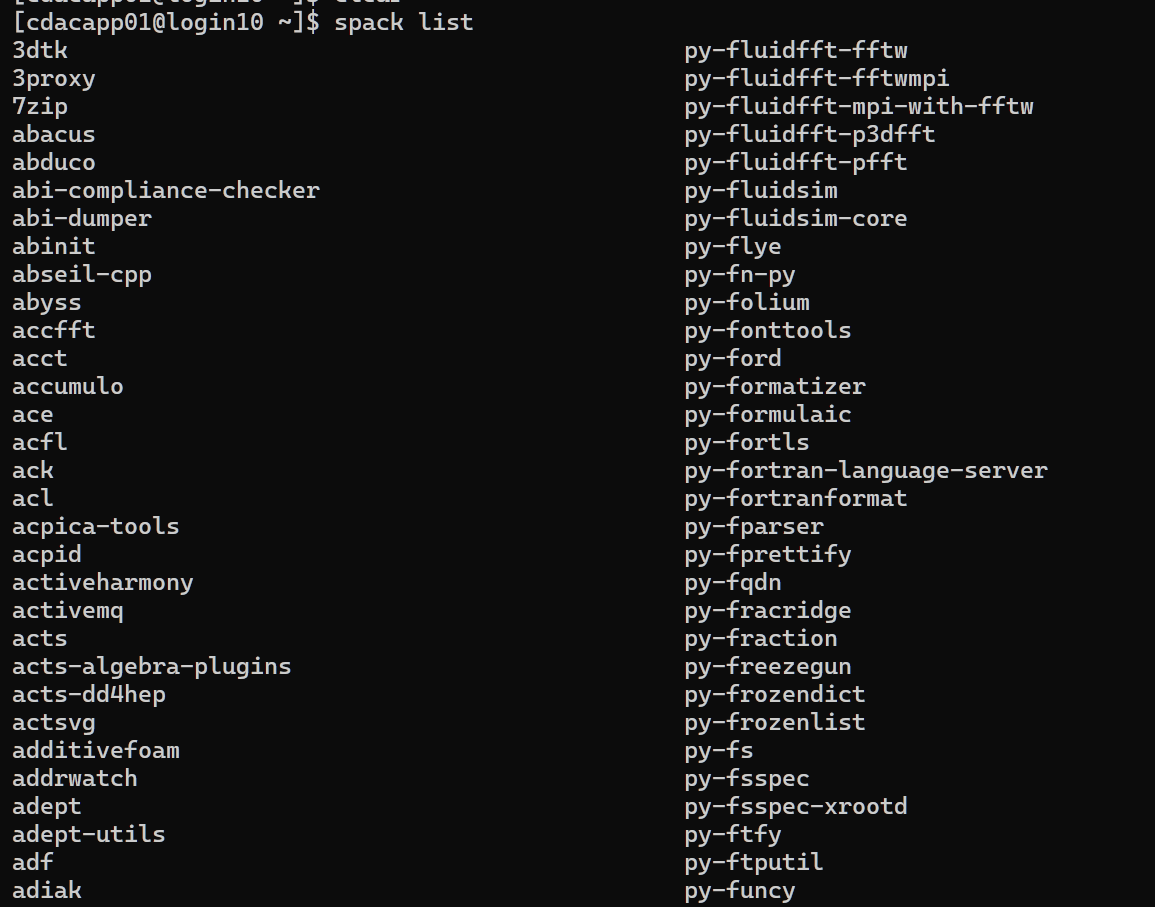
spack list
The spack list command shows available packages.
The spack list command can also take a query string. Spack automatically adds wildcards to both ends of the string, or you can add your own wildcards.
Before installing application check its spec with command
spack install
Below is an example of installation of package using spack:
spack install gromacs@2020.5 +cuda~mpi+blas %intel ^intel-mkl
Above command will install gromacs version 2020.5 with blas and cuda support and without MPI support. For blas there are multiple providers like OpenBLAS, Intel MKL, amdblis, and essl, ^intel-mkl will tell spack to use intel-mkl for blas routines.
Operators in Spack
% to select compiler out of available compilers
^ to use variant of package
@ to define the version number of packages to be installed.
- to enable variant for package
~ to disable variant for package
Uninstalling Packages
Earlier we installed many configurations each of zlib. Now we will go through and uninstall some of those packages that we didn’t really need.
$ spack uninstall zlib %gcc@6.5.0 (type: y)
Using Environments
Spack has an environment feature in which you can group installed software. You can install software with different versions and dependencies in each environment and can change software to use at once by changing environments. You can create a Spack environment by spack env create command. You can create multiple environments by specifying different environment names here.
spack env create myenv
To activate the created environment, type spack env activate. Adding -p option will display the current activated environment on your console. Then, install software you need to the activated environment.
spack env activate -p myenv
[myenv] [username@es1 ~]$ spack install xxxxx
You can deactivate the environment by spack env deactivate. To switch to another environment, type spack env activate to activate it.
[myenv] [username@es1 ~]$ spack env deactivate [username@es1 ~]$
Use spack env list to display the list of created Spack environments.
[username@es1 ~]$ spack env list
==> 2 environments myenv another_env
Packaging (For Application developers)
Spack packages are installation scripts, which are essentially recipes for building the software.
They define properties and behaviour of the build, such as:
- where to find and how to retrieve the software.
- its dependencies.
- options for building the software from source; and
- build commands.
Once we’ve specified a package’s recipe, users of our recipe can ask Spack to build the software with different features on any of the supported systems. Refer Packaging Guide — Spack 0.22.0 documentation for detailed understanding of the Spack packaging.
Example Creating Own Package:
In below spec file we have used Linewidth an IISc developed code. See the bold lines for comments related to preceding lines in the spec file of spack package named IiscLinewidth:
# Copyright 2013-2021 Lawrence Livermore National Security, LLC and other # Spack Project Developers. See the top-level COPYRIGHT file for details. #
# SPDX-License-Identifier: (Apache-2.0 OR MIT) import os
import platform import sys
import llnl.util.tty as tty from spack import *
class IiscLinewidth(MakefilePackage): """
Linewidth developed by IISC Banglore. """
homepage = ""
#Url for homepage
url = "file://{0}/linewidth.tar.gz".format(os.getcwd())
#Url for source code
manual_download = True
#If source code is not available in public domain
version('1', sha256='7215f6765e5f5eddfde5f0c67a5bbdef5960607f3e199a609ef5619278ec8a66',
preferred=True)
#You can add different versions for you package.
variant('mpi', default=True, description='Install with MPI support') variant('openmp', default=True, description='Install with OpenMP
support')
#Variant gives flexibility to users for changing parameter before compilation.
depends_on('gmake', type='build') depends_on('mpi', when='+mpi') depends_on('hdf5+fortran+hl+mpi') depends_on('intel-mkl') depends_on('py-h5py')
depends_on('py-matplotlib', type=('build', 'run'))
#Depend clause used to specify dependencies for your code.
@property
def build_targets(self): targets = [
#'--directory=SRC', '--file=Makefile',
'LIBS={0} {1} '.format(self.spec['intel-mkl'].libs.ld_flags,
self.spec['hdf5'].libs.ld_flags), 'HDFINCFLAGS={0}'.format(self.spec['hdf5'].prefix.include), 'HDF5_HOME={0}'.format(self.spec['hdf5'].prefix), 'FC={0}'.format(self.spec['mpi'].mpifc)
]
return targets
def install(self, spec, prefix): mkdirp(prefix.bin) install('linewidth', prefix.bin)
####
#This code uses Makefile for building application. We can define some properties
# to make changes in Makefile, changing parameter in Makefile at compile time.
Sample steps taken for creating linewidth application recipe for Spack
- Source code
Source code of Linewidth was not available through public repo like GitHub, so needed to import OS package.
os.getcwd() - expects the source tar present in current working directory. cha256 - to check for sha256 checksum we added same in version clause and for place holder we have given version as 1.
manual download = True refers to spack will not try to download source code for the package.
name - make sure that name of tar file is same as used inside package recipe
- Variant- User can control behavior of application being built through this clause. Ex- To enable MPI support we have defined it to be true by default.
- depends_on() - This clause defines all dependencies required to build the given application.
Ex- In linewidth example we have used Intel-MKl and HDF5.
- @property - With this decorator we can define some properties for build system like edit, build, install.
- property build_targets - Defines logic of building source for native platform.
- property install - Defines install procedure to be used after building source code. Ex- In our example we define prefix path
Sample SLURM script for OpenMP applications/programs. to use Spack
#!/bin/bash
#SBATCH --nodes=1
#SBATCH -p cpu ## gpu/standard
#SBATCH --exclusive
#SBATCH -t 1:00:00
echo "SLURM_JOBID="$SLURM_JOBID
echo "SLURM_JOB_NODELIST"=$SLURM_JOB_NODELIST echo "SLURM_NNODES"=$SLURM_NNODES
echo "SLURM_NTASKS"=$SLURM_NTASKS
ulimit -s unlimited ulimit -c unlimited
export OMP_NUM_THREADS=4 ### Maximum number of threads= Number of physical core

#To load necessary application/compiler through spack module load spack
export SPACK_ROOT=/home/apps/SPACK/spack
. $SPACK_ROOT/share/spack/setup-env.sh
spack load intel-oneapi-mpi /qfvzrn4
spack load intel-oneapi-mkl /z2opgtw
spack load intel-oneapi-compilers /x65hj4e
spack load gcc@12.4.0
(time <executable_path>)
Sample SLURM script for MPI applications/programs to use Spack
#!/bin/bash
#SBATCH --nodes=2
#SBATCH -p cpu ## gpu/standard
#SBATCH --exclusive
#SBATCH -t 1:00:00
echo "SLURM_JOBID="$SLURM_JOBID
echo "SLURM_JOB_NODELIST"=$SLURM_JOB_NODELIST echo "SLURM_NNODES"=$SLURM_NNODES
echo "SLURM_NTASKS"=$SLURM_NTASKS
ulimit -s unlimited ulimit -c unlimited

#To load necessary application/compiler through spack module load spack

export SPACK_ROOT=/home/apps/SPACK/spack
. $SPACK_ROOT/share/spack/setup-env.sh
spack load intel-oneapi-mpi /qfvzrn4
spack load intel-oneapi-mkl /z2opgtw
spack load intel-oneapi-compilers /di5wvj5
spack load gcc@12.4.0 /777kyuf
(time mpirun -np $SLURM_NTASKS <executable_path>)